Progress Bar Animation Maker
Setup
Size
Timing
0 to 100
0 to 100
0.5 to 60
0 to 10
Easing
Total length: 6 s
Text
Show label
Show percentage
Look
Font
Thickness
Corners
The filled part of the bar.
The empty part behind the fill, drawn see-through.
The label and the percentage.
Background
Green or blue screen keys out in your editor.
Preview
1280×720 · MP4
1280 × 720 preview
Newsletter
Get New Tools In Your Inbox
One short email when a new Tool launches. No spam, unsubscribe any time.
About
Free Progress Bar Animation Maker
A progress bar video shows a bar filling from one percent to another, often with a label such as Loading and a percentage that counts up. Creators use it for loading screens, fake downloads, countdowns to a goal and progress reveals, usually laid over other footage.
This free progress bar animation maker turns a start percent and an end percent into a finished MP4. It works as a loading bar maker too: the bar can fill, or drain back down.
Set how long the fill takes, add a label and a percentage, pick a font and colors, preview it, and download it.
The clip comes on a green screen by default, so you can key the background out in your editor.
Everything renders in your browser, so there are no accounts, your videos are never uploaded, and the export has no watermark.
- 0 to 100%
- fill from any percent to any other, or drain back down
- 0.5 to 60 s
- fill time, plus up to 10 s holding on the end
- 16:9 · 1:1 · 9:16
- aspect ratios: widescreen, square, vertical
- Free
- no watermark, no account, rendered in your browser
Where to use it
Where To Use A Progress Bar Video
Loading Screens And Intros
Open a video with a loading bar that fills before the content starts, with a label such as Loading or Starting soon.
Fake Downloads And Hacking Skits
Show an upload, a download or an installation filling up, with a label and a percentage that matches the joke.
Goals And Fundraisers
Fill a bar to 100% or stop part-way, for a subscriber goal, a savings target or a funding update.
Reels, TikTok And Shorts
Export in 9:16 and lay the bar over your clip as a hook, a timer or a reveal.
Streams And Gaming
Use a loading bar for a stream starting soon scene, a level loading screen or a boss-fight countdown.
Presentations And Explainers
Drop an animated progress bar into a slide deck, a product demo or a tutorial to show how far along something is.
How it works
How To Make A Progress Bar Video
- 01
Set The Fill
Choose a size, type the start and end percent, and set how long the fill takes and how long the final percent stays.
- 02
Style It
Write a label, show or hide the percentage, pick a font, the bar's thickness and corners and its colors, and keep the green screen or choose another background.
- 03
Preview And Export
Press play to check it, then Export Now. The MP4 renders in your browser and downloads to your device.
Customize
Customize Your Progress Bar
Fill And Timing
Fill between any two whole percents from 0 to 100, or drain from a higher one to a lower one. The fill takes 0.5 to 60 seconds and can move evenly or ease in and out, then holds on the final percent for up to 10 seconds.
Label And Percentage
Add a label of up to 40 characters above the bar on the left, and a percentage above it on the right. Switch either one off. Long text shrinks to fit.
Look
Pick from six fonts, a slim, regular or thick bar with rounded or square ends, and any colors for the fill, the empty track and the text.
Background
Green screen is the default, with blue screen and black one click away, or use any solid color.
FAQ
Progress Bar Video FAQ
What Is A Progress Bar Animation?
It is a short clip of a bar filling from one percent to another, often with a label such as Loading and a percentage that counts up.
It is used for loading screens, fake downloads, goals and progress reveals, usually placed over other footage in an editing app.
How Do I Make A Progress Bar Video?
Choose a size, type the start and end percent, set the duration, add a label and adjust the look, press play to preview, then press Export Now. The MP4 downloads straight to your device.
Can I Add The Progress Bar To My Own Video?
This tool makes a standalone clip. It does not open or change a video you already have.
Keep the green screen background and export. In your editor, place the clip on a track above your footage and apply a chroma key (also called green screen or ultra key) to remove the green.
CapCut, DaVinci Resolve, Premiere Pro and Final Cut all have one. If your bar is green, switch to the blue screen background.
Can It Be A Loading Bar, And Can The Bar Drain Instead Of Fill?
Yes. Label it Loading and let it fill from 0 to 100%. If the start percent is higher than the end percent, the bar drains instead, for example from 100% down to 0%.
Can I Stop The Bar Part-Way Or Start It Part-Way?
Yes. The start and end percent can be any whole numbers from 0 to 100, so a bar can run from 20% to 75%, and it holds on the final percent for up to 10 seconds.
Which Sizes And Formats Does It Export?
MP4 at 30 or 60 frames per second and 480p, 720p or 1080p, in 16:9 for YouTube and widescreen, 1:1 for square posts, and 9:16 for Reels, TikTok and Shorts.
At 1080p that is 1920×1080, 1080×1080 or 1080×1920 pixels. 1080p is the largest size. There is no 4K export. The exact size and frame rate are shown next to the Export button.
The longest clip is 70 seconds: a 60 second fill and a 10 second hold.
Is The Progress Bar Animation Maker Free, And Are My Clips Private?
It is free and needs no account. The video is rendered in your browser on your own device, and your videos are never uploaded.
Does The Exported Video Have A Watermark?
No. The MP4 you download has no watermark, logo or EditKitz branding on it: only the bar and text on the background you chose.
Does The Video Have Sound?
No. The clip is silent, so you can add your own music or a loading sound in your editing app.
More In The Kit
 Film Leader Countdown Maker
 Number Counter Animation Maker
 Search Bar Typing Animation Maker
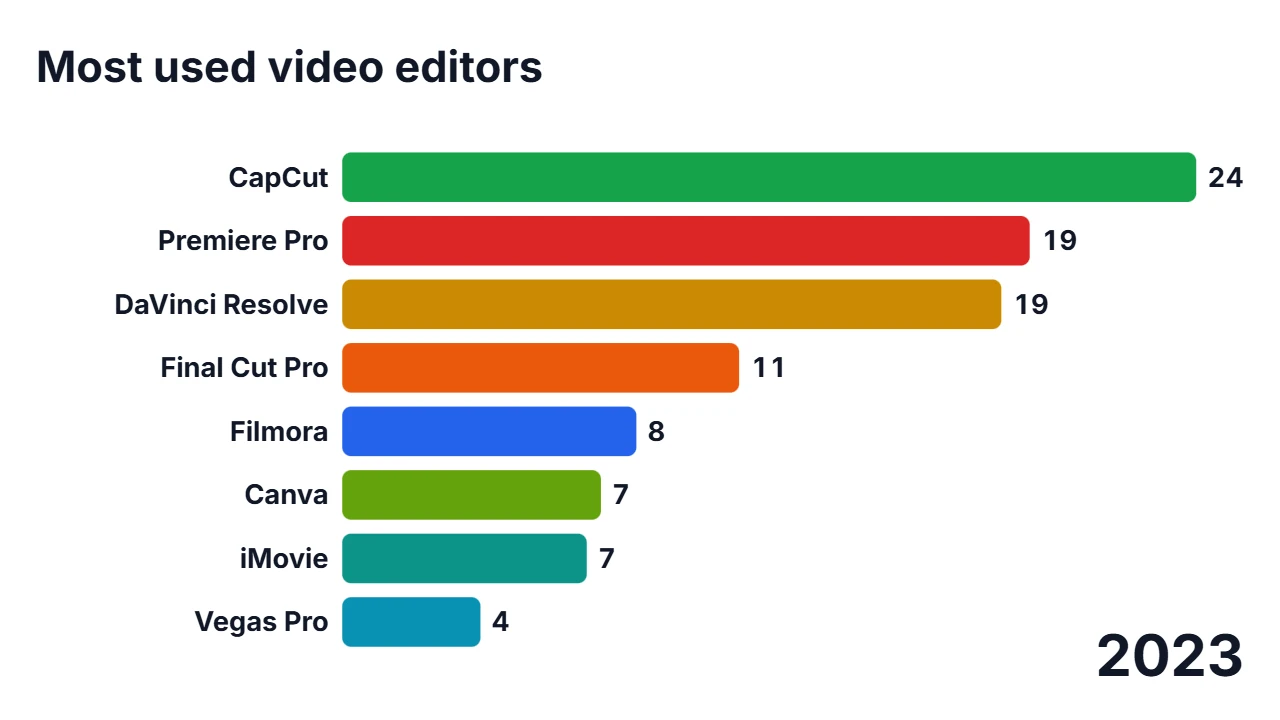 Bar Chart Race Maker
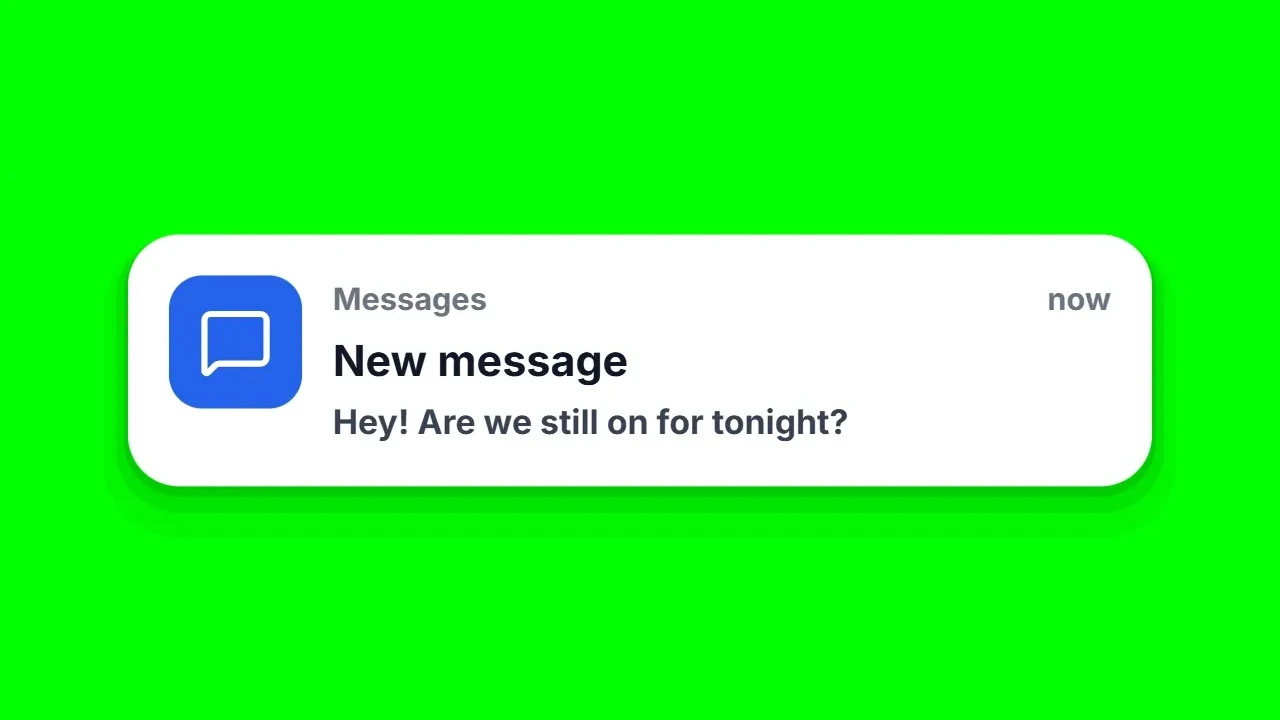 Notification Popup Animation Maker
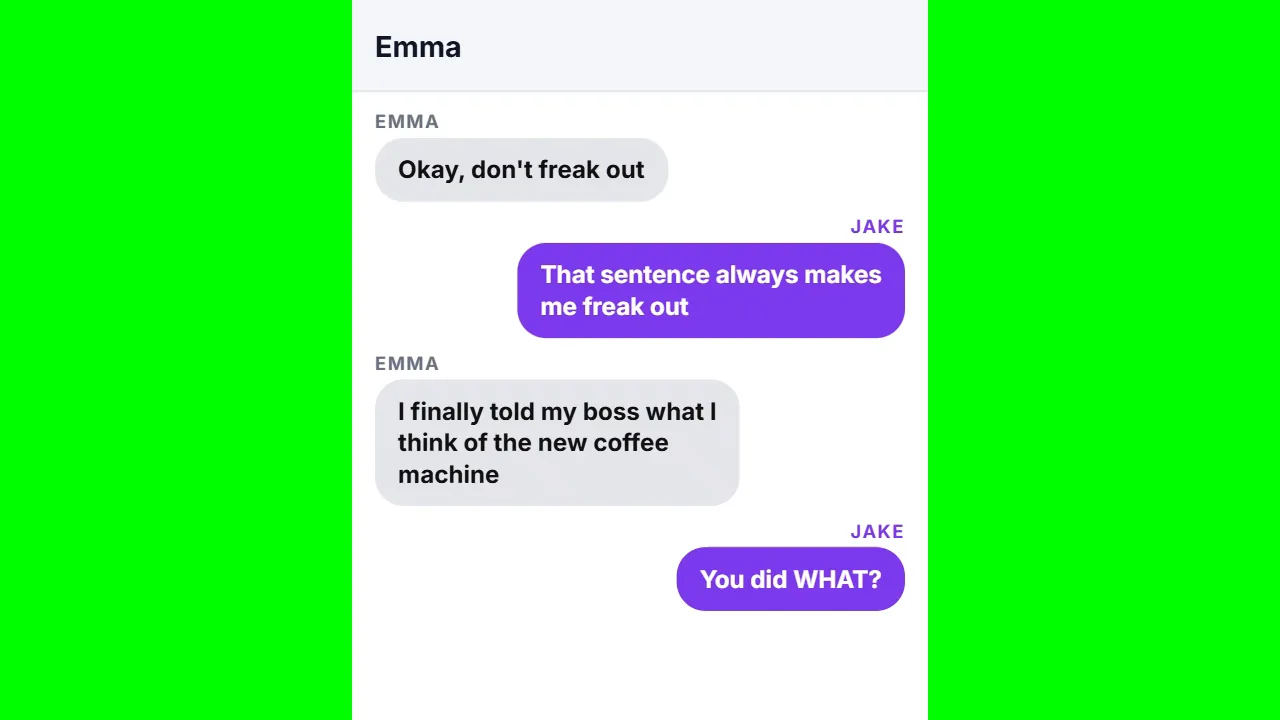 Text Message Chat Maker
- Film Leader Countdown Maker
- Number Counter Animation Maker
- Search Bar Typing Animation Maker
- Bar Chart Race Maker
- Notification Popup Animation Maker
- Text Message Chat Maker
- Film Leader Countdown Maker
- Number Counter Animation Maker
- Search Bar Typing Animation Maker
- Bar Chart Race Maker
- Notification Popup Animation Maker
- Text Message Chat Maker